# Logs & Progress

In the **Logs & Progress** section, you can view the logs and history of wallet operations, see exactly where and when a transaction was made, and review any errors that occurred. This section also allows you to find the hashes of your transactions, pause wallets, or resume their operations.

* After you start a session with the selected parameters in the **Settings and Launch** section, you will be automatically redirected to the **Logs & Progress** page, where you can see all the actions performed and currently being performed by the software for each specific wallet;
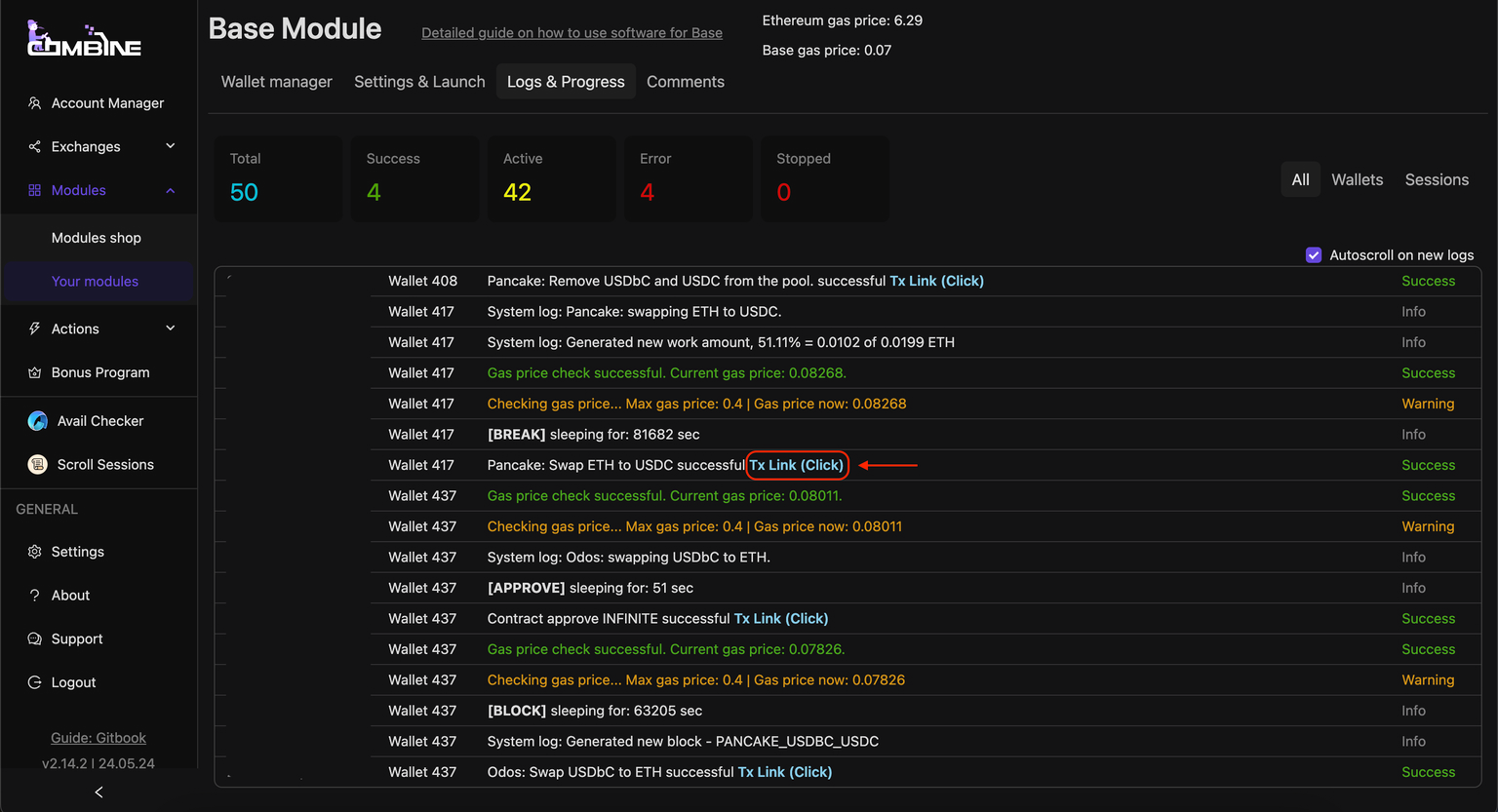
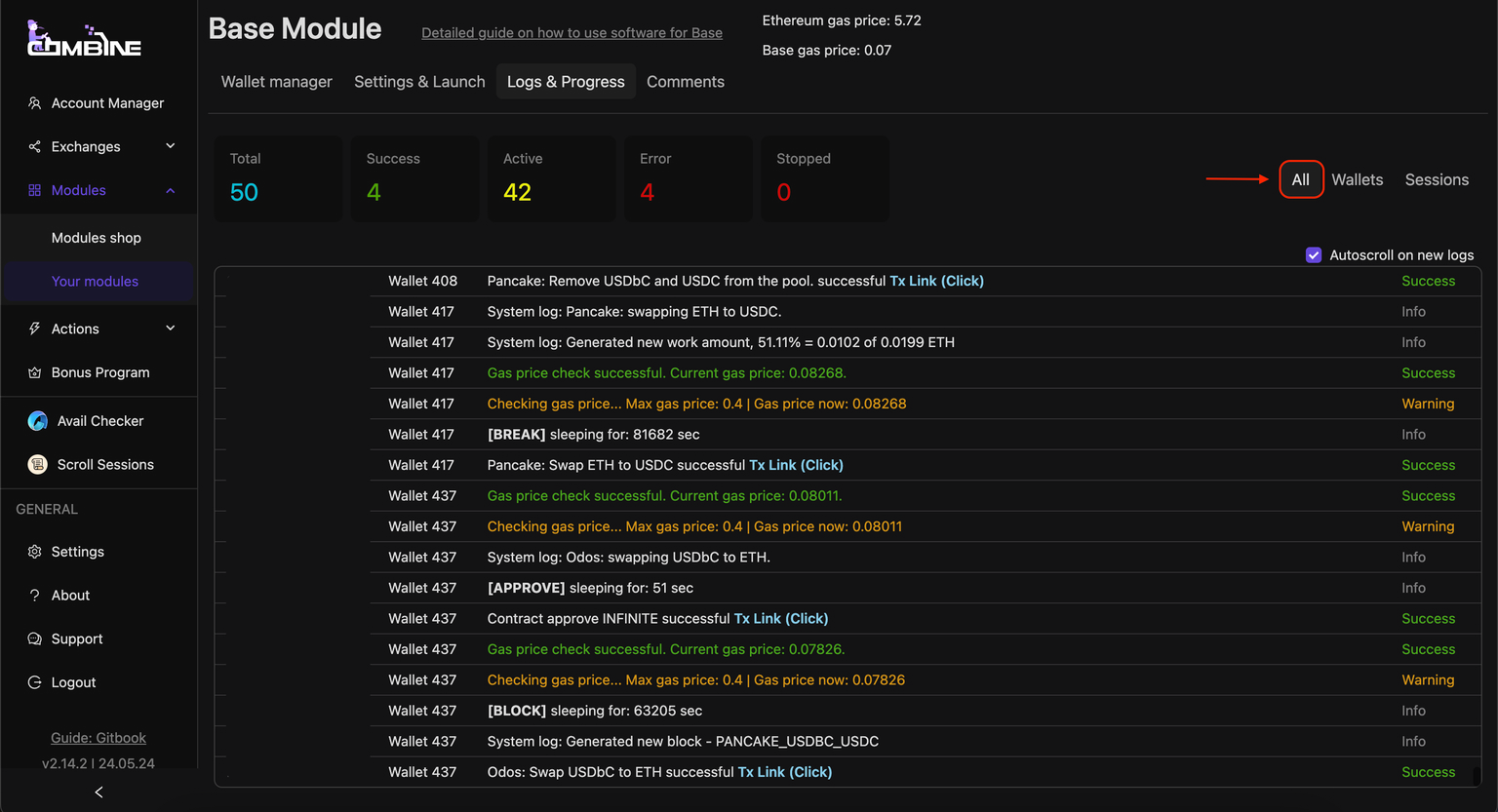
* In the **All** section, all logs for all wallets are collected in one place.

<figure><img src="https://883793412-files.gitbook.io/~/files/v0/b/gitbook-x-prod.appspot.com/o/spaces%2FwkJ3XgG3awYBhDsxkXtj%2Fuploads%2FrKTxXnnPkA3rT6rJEBjO%2Fimage.png?alt=media&#x26;token=cf655ce8-781d-44ee-b1e1-c33c98e3d383" alt=""><figcaption><p>Section All.</p></figcaption></figure>

* By clicking on **Tx Link (Click)**, you can view this transaction in the explorer.

<figure><img src="https://883793412-files.gitbook.io/~/files/v0/b/gitbook-x-prod.appspot.com/o/spaces%2FwkJ3XgG3awYBhDsxkXtj%2Fuploads%2FBESZVavFUz1TyP4iedNd%2Fimage.png?alt=media&#x26;token=7ce23cae-2d69-43ab-8a73-284e14a44555" alt=""><figcaption><p>View transaction hash.</p></figcaption></figure>

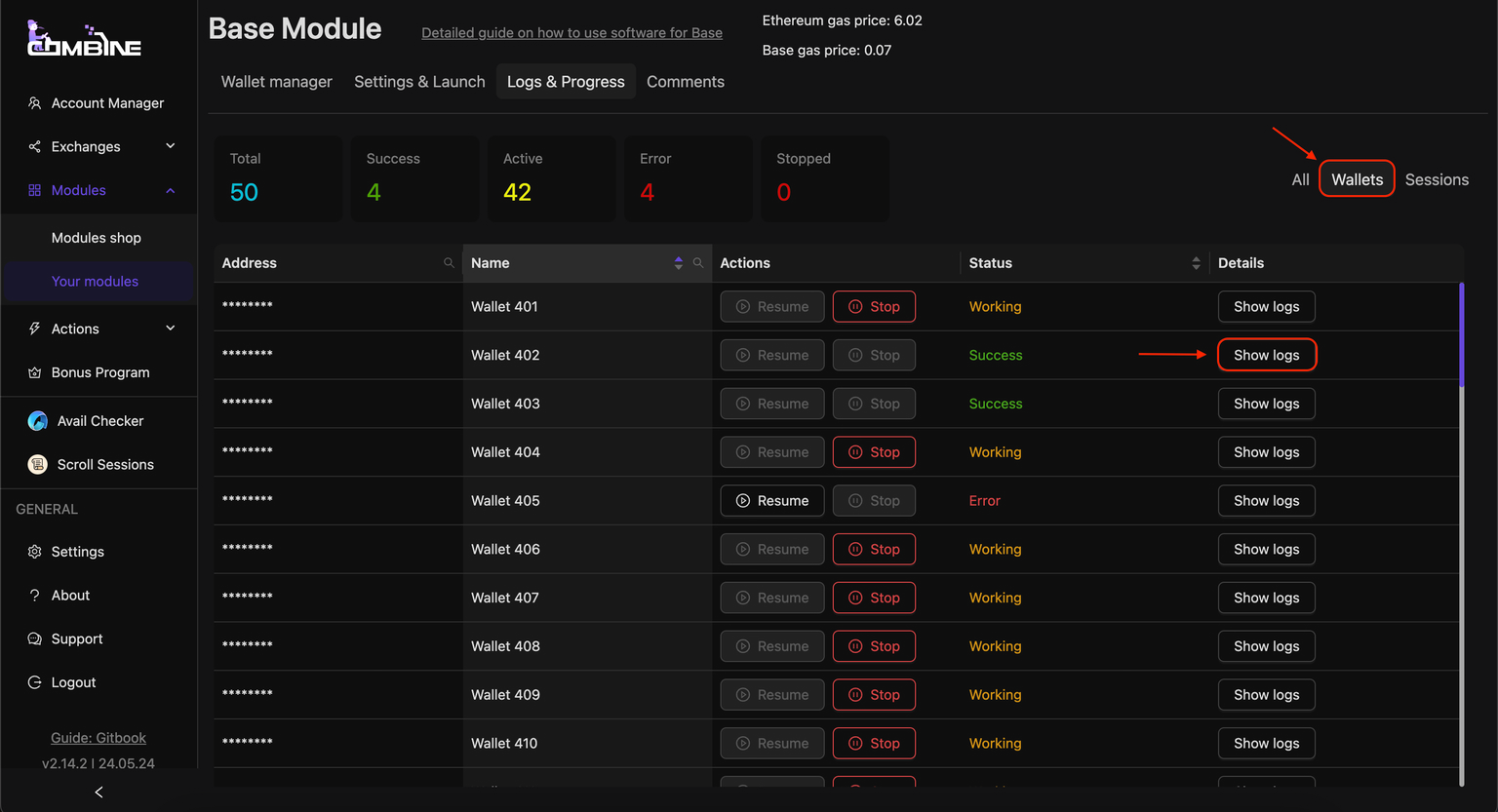
* In the **Wallets** section, you can view logs for each wallet individually by clicking the **Show logs** button next to it.

<figure><img src="https://883793412-files.gitbook.io/~/files/v0/b/gitbook-x-prod.appspot.com/o/spaces%2FwkJ3XgG3awYBhDsxkXtj%2Fuploads%2FDAVTKUSIvv4qUTayVWUO%2Fimage.png?alt=media&#x26;token=0e50e7e6-7b0e-4069-84fa-5a5cb13859f9" alt=""><figcaption><p>View logs of a specific wallet.</p></figcaption></figure>

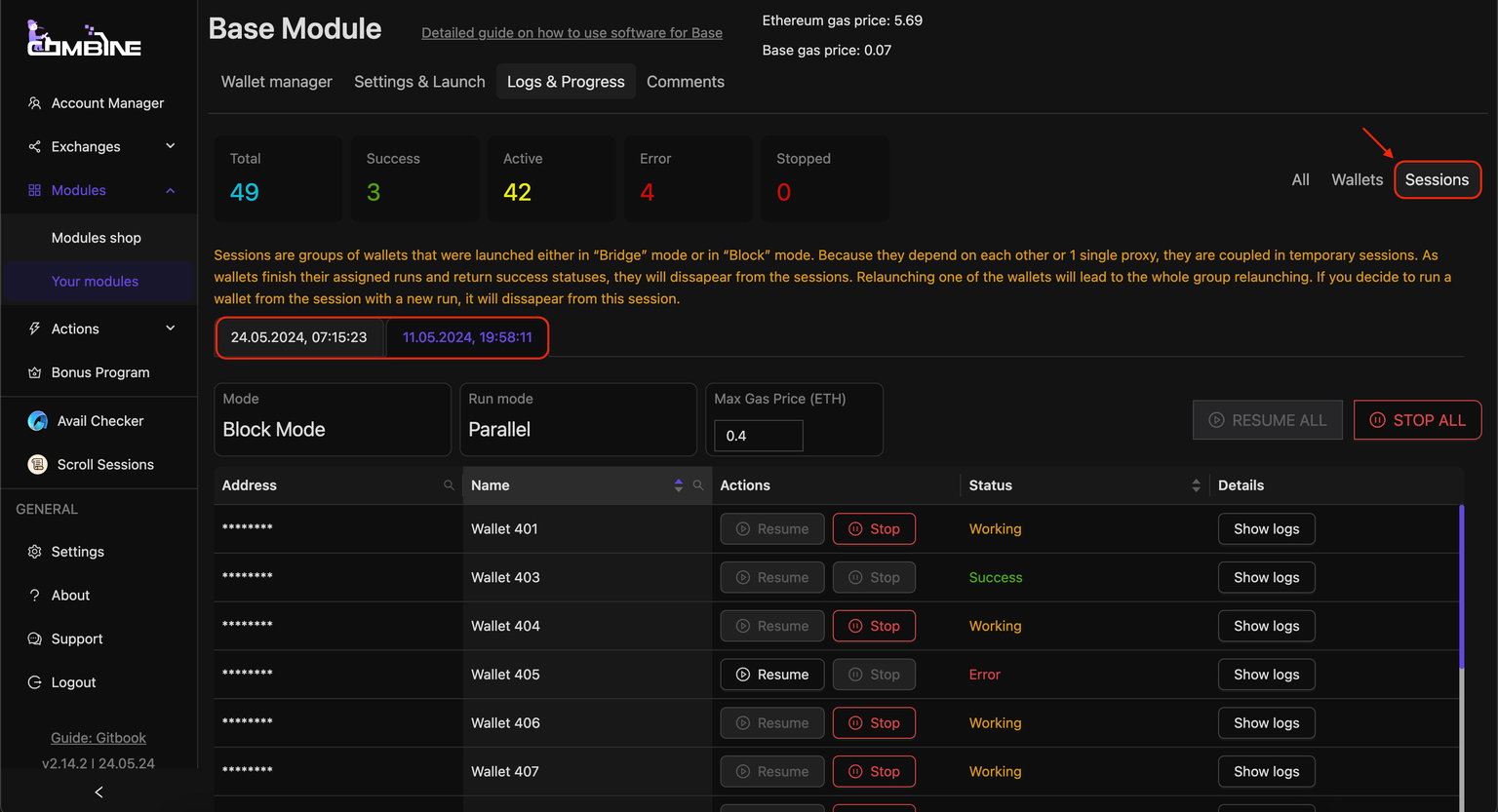
* In the **Sessions** section, you can view logs for specific wallets that were launched in one session. You can switch between sessions using the date and time buttons. Here, you can also view logs for a specific wallet.

<figure><img src="https://883793412-files.gitbook.io/~/files/v0/b/gitbook-x-prod.appspot.com/o/spaces%2FwkJ3XgG3awYBhDsxkXtj%2Fuploads%2FfaWTiTQZRPs0TohnsDqD%2Fimage.png?alt=media&#x26;token=3a6f6d6b-73de-4c1b-8bc4-b16524ec8ea5" alt=""><figcaption><p>Functionality of the Sessions section.</p></figcaption></figure>

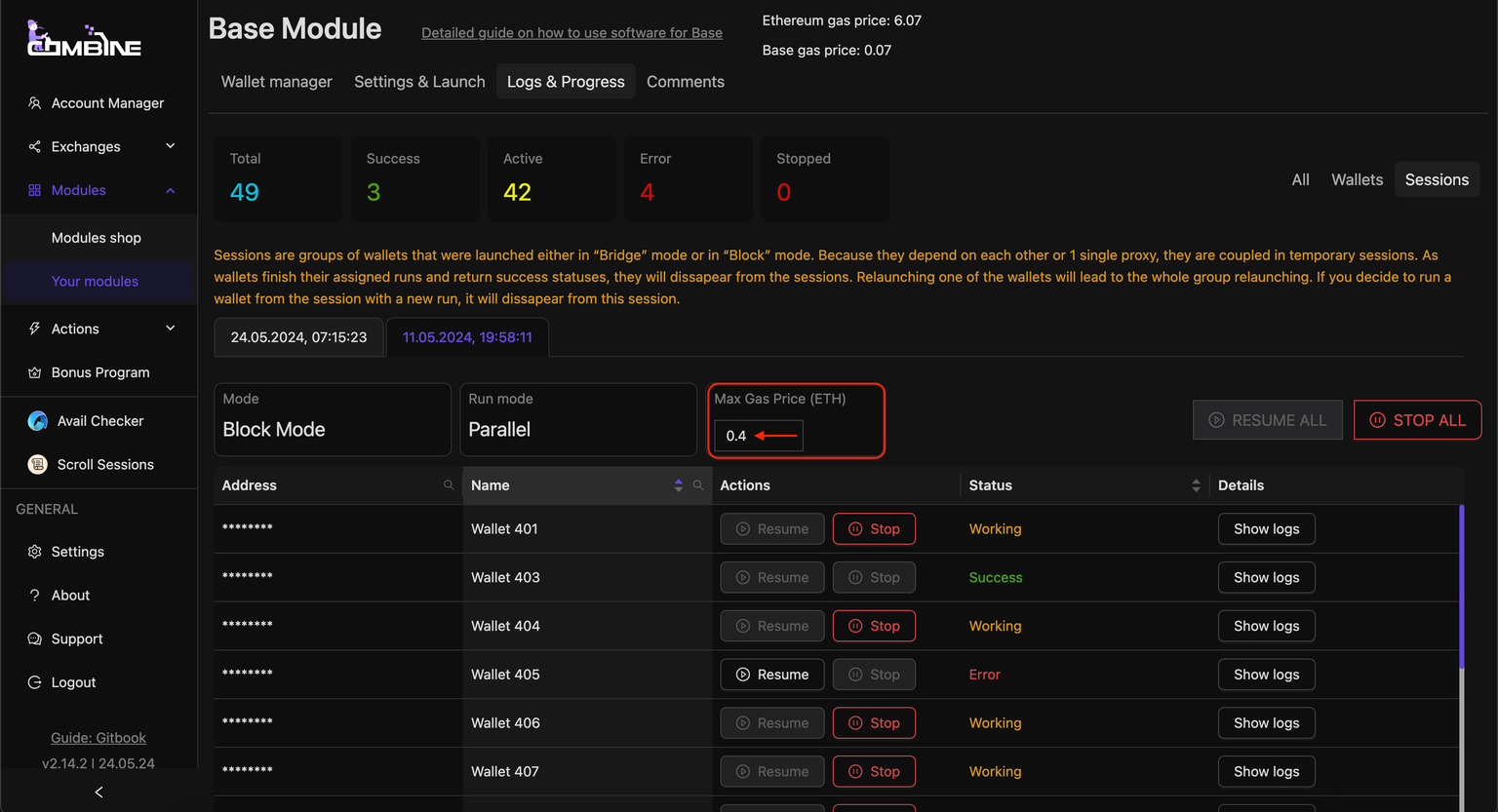
* In the same section, in the **Max Gas Price** field, you can increase or decrease the allowable Gwei limit for a specific session.

<figure><img src="https://883793412-files.gitbook.io/~/files/v0/b/gitbook-x-prod.appspot.com/o/spaces%2FwkJ3XgG3awYBhDsxkXtj%2Fuploads%2FXntLhQ0N6qQfK1NVNSNJ%2Fimage.png?alt=media&#x26;token=b1d0abc3-8509-41f0-a67b-eb78424b9e42" alt=""><figcaption><p>Changes the maximum Gwei value in running sessions.</p></figcaption></figure>

If you want to pause the sessions, click **Stop All**. To resume the wallets' operations, click **Resume All**, and the software will continue from where it left off, generating new delays between wallets.

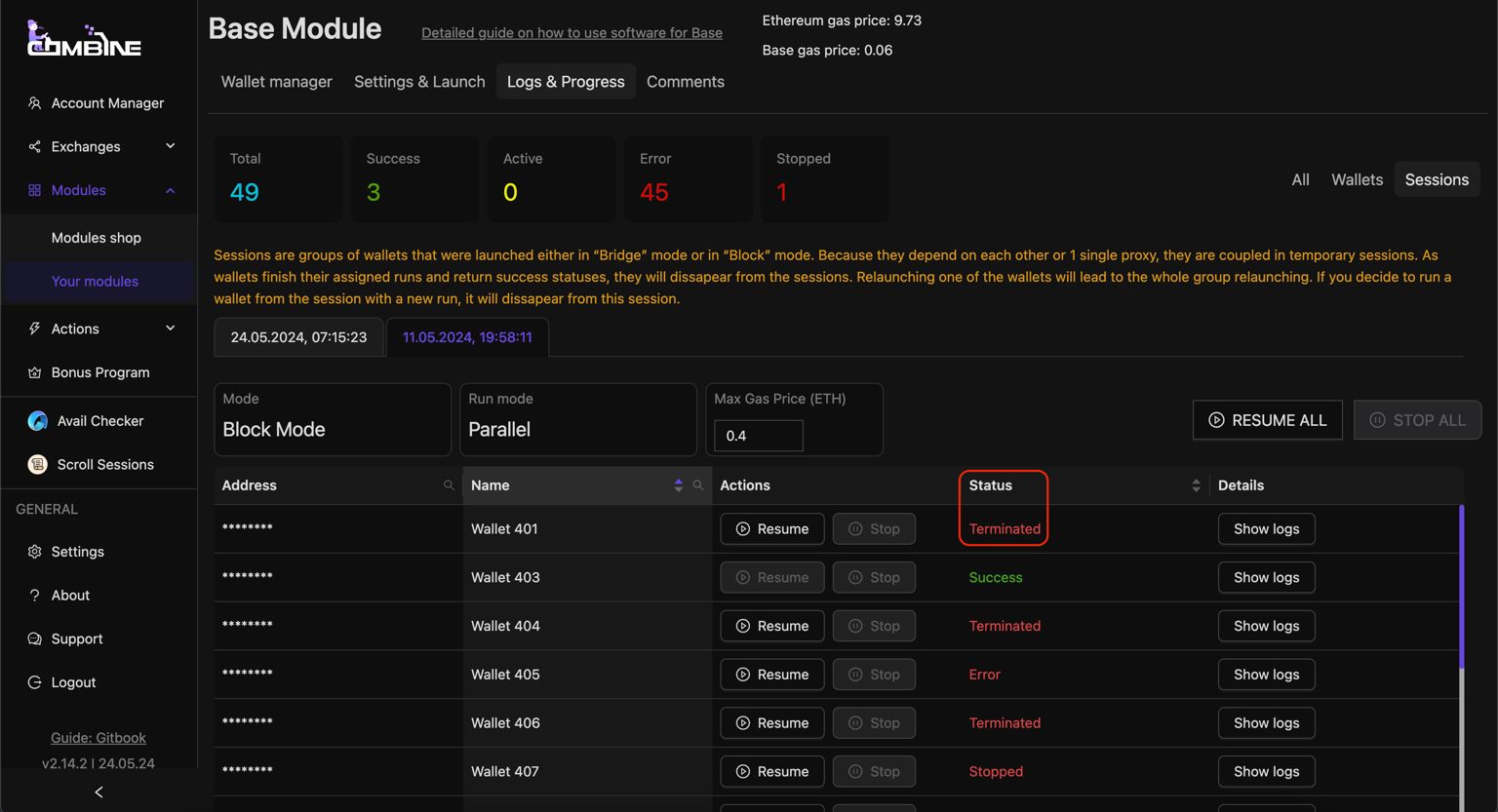
If the Combine application closes during a session or your PC shuts down, the software will automatically pause the wallets with a status of **Terminated**. After reopening the application, you can click **Resume All**, and the software will continue from where it was stopped, generating new delays between wallets.

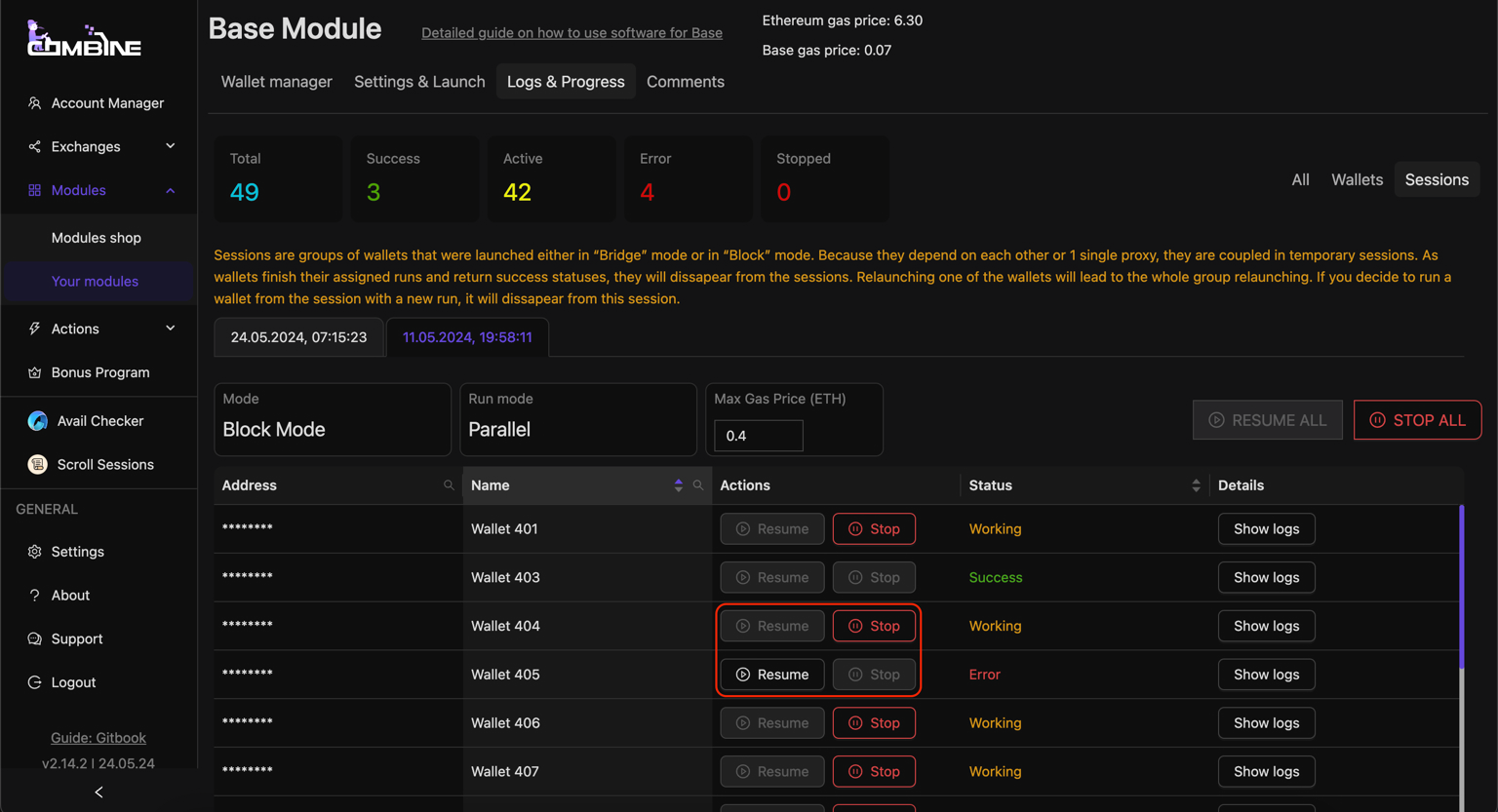
* If you click **Resume** on each wallet individually, the delays will not be preserved, and all your wallets will resume operations exactly when you clicked **Resume**.

<figure><img src="https://883793412-files.gitbook.io/~/files/v0/b/gitbook-x-prod.appspot.com/o/spaces%2FwkJ3XgG3awYBhDsxkXtj%2Fuploads%2FtOlqA4NBRVZROa0wavKn%2Fimage.png?alt=media&#x26;token=727c74ed-5102-44de-9d21-5aa9d462118a" alt=""><figcaption><p>Stopping and continuing the operation of a specific wallet.</p></figcaption></figure>

* After successfully completing all actions, you will see the green label **Success** in the **Status** field;
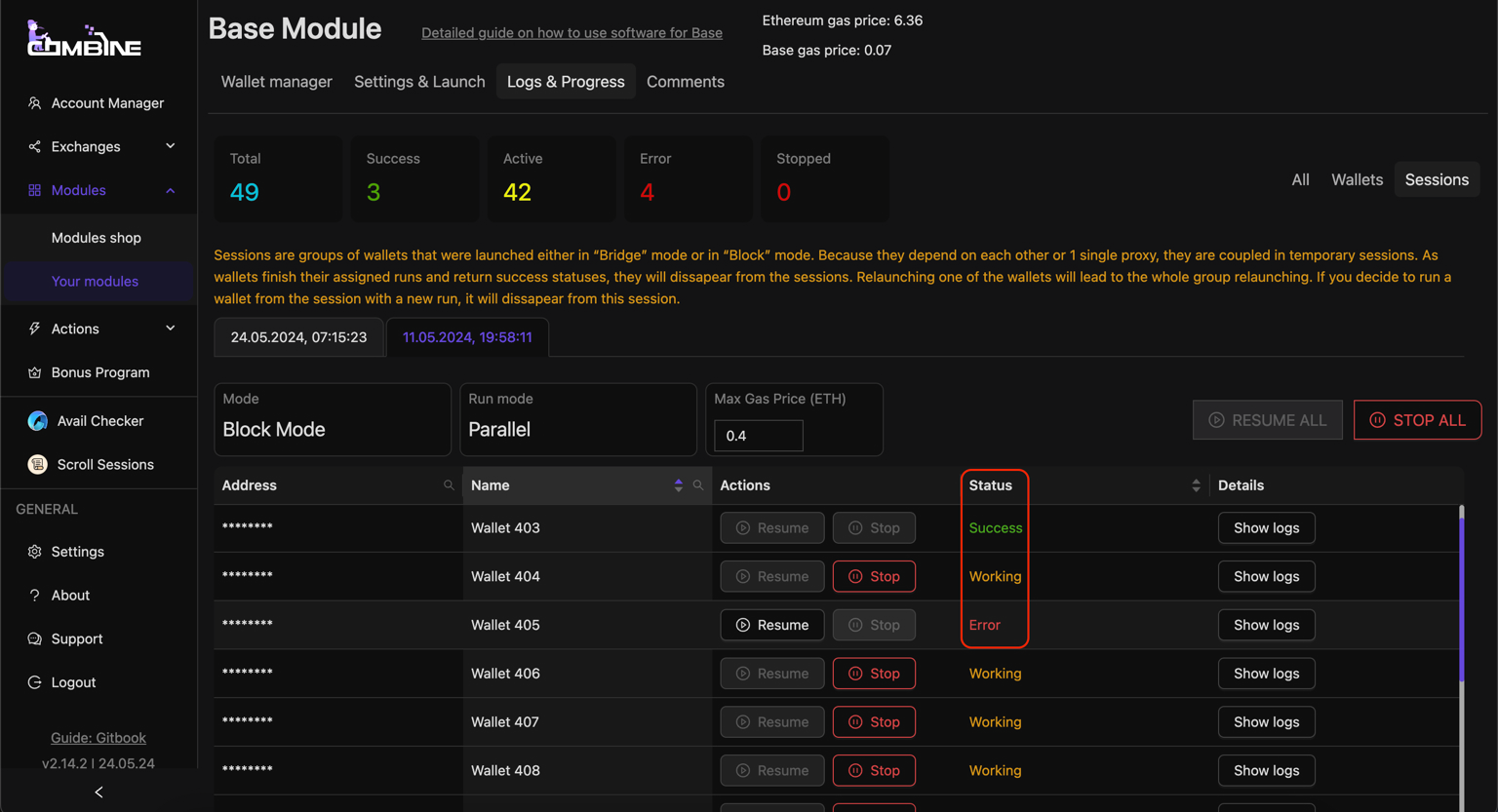
* If you see **Error** in the **Status** field, you can check the logs to find out the reason why the software was interrupted. If the error was due to insufficient balance or another reason dependent on you, you can fix the issue, then click **Resume**, and the software will continue the session from where the error occurred for that wallet.

<figure><img src="https://883793412-files.gitbook.io/~/files/v0/b/gitbook-x-prod.appspot.com/o/spaces%2FwkJ3XgG3awYBhDsxkXtj%2Fuploads%2FVPkH5O3PL4GzOFINtCCE%2Fimage.png?alt=media&#x26;token=7fbf3a41-09f5-4213-ba28-5a2d251b39e4" alt=""><figcaption><p>Operation Status Error.</p></figcaption></figure>

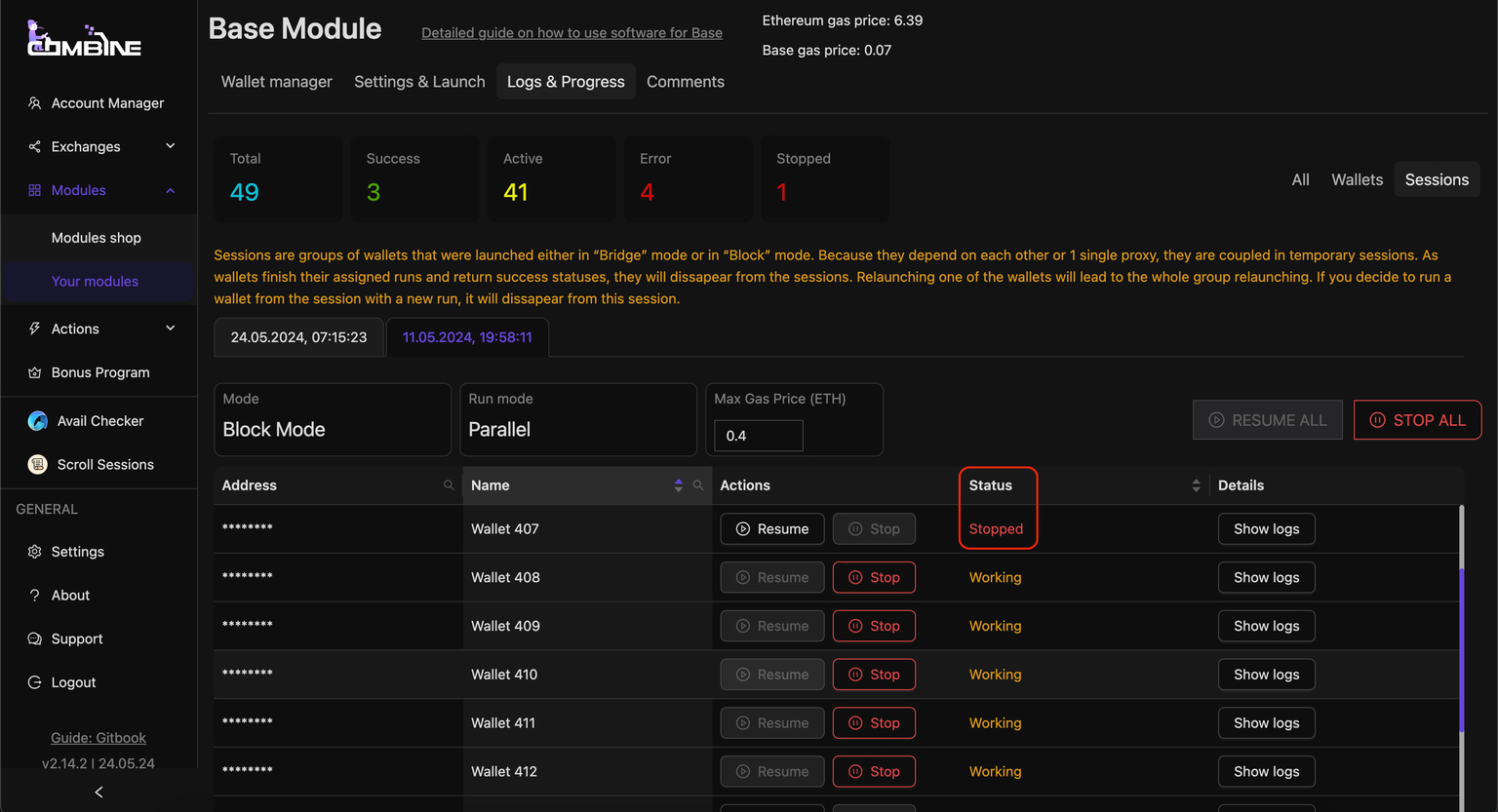
* If the **Status** field shows **Stopped**, it means the wallet is paused. To resume the software from where it was stopped, click the **Resume** button.

<figure><img src="https://883793412-files.gitbook.io/~/files/v0/b/gitbook-x-prod.appspot.com/o/spaces%2FwkJ3XgG3awYBhDsxkXtj%2Fuploads%2FrgJhgwx2hCknbijnFiDC%2Fimage.png?alt=media&#x26;token=0d914c80-bb4c-48d6-9be5-cc64f7022a90" alt=""><figcaption><p>Wallet Status Stopped.</p></figcaption></figure>

* If the **Status** field shows **Terminated**, it is essentially the same as the **Stopped** status. However, this status is assigned to wallets that were forcibly paused due to the complete closure of the Combine application. To resume the software from where it was closed, click the **Resume** button.

<figure><img src="https://883793412-files.gitbook.io/~/files/v0/b/gitbook-x-prod.appspot.com/o/spaces%2FwkJ3XgG3awYBhDsxkXtj%2Fuploads%2FzIQoPJ4FIGtFU4RdYwlQ%2Fimage.png?alt=media&#x26;token=f24f2e1e-1fad-4c0c-a02a-3fa4e5a01cdf" alt=""><figcaption><p>Wallet Status Terminated.</p></figcaption></figure>